Digital Art Setup Builder
- Best For:
- Key Feature:
- Type:
- Platform:
Why this works for you:
You’ve seen the stunning illustrations on Instagram, the concept art in your favorite video games, and the animated shorts on YouTube. It all looks effortless, right? But if you’re looking to start creating that kind of work yourself, the first question is usually: what do I actually need? The good news is that the barrier to entry has never been lower. You don’t need a studio full of expensive gear or a computer that costs more than a car.
Most people today create digital art using a combination of three things: a screen they can draw on, a tool to capture their hand movements, and software to render the image. Whether you are a beginner with a budget or a professional needing top-tier performance, the ecosystem is vast. Let’s break down exactly what the majority of artists are using in 2026 to get the job done.
The Screen: Where the Magic Happens
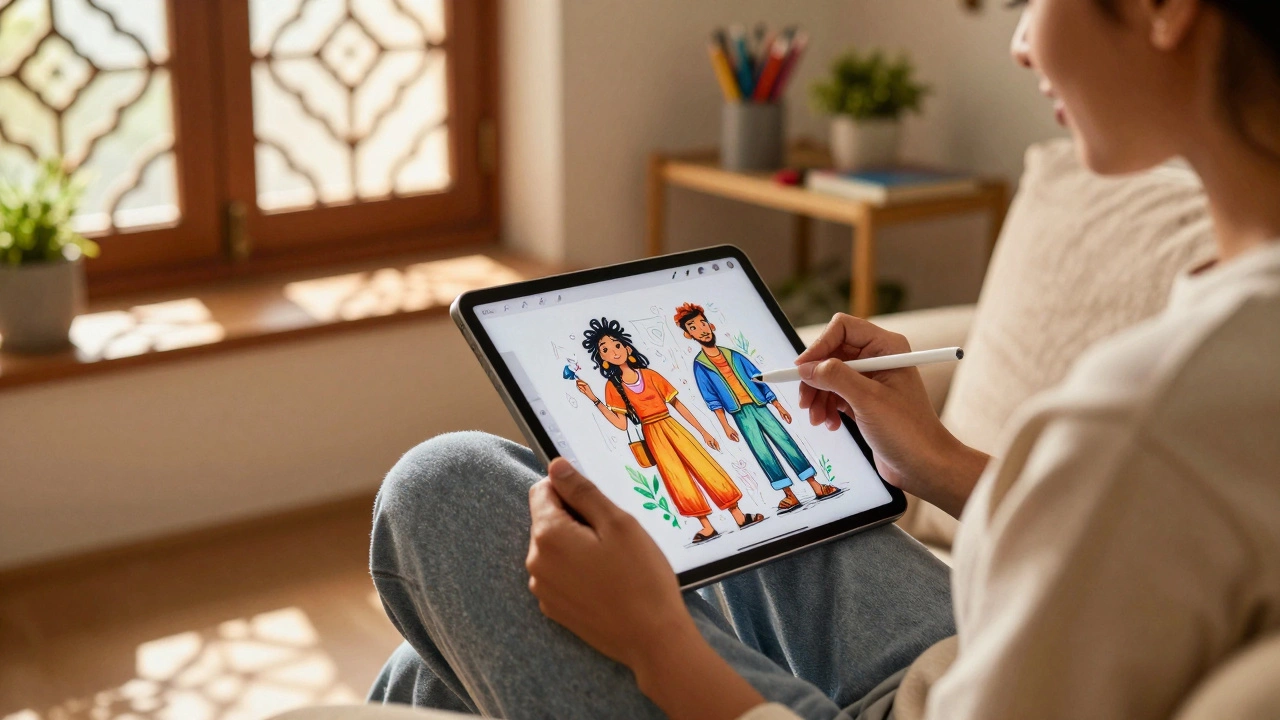
Before we talk about apps, we have to talk about hardware. In the early days of digital art, you drew on a separate piece of plastic (a tablet) while looking at a monitor. That changed everything when direct-screen drawing became affordable. Today, most artists prefer drawing directly on the display because it feels natural-like holding a pencil over paper.
| Device Type | Best For | Pros | Cons |
|---|---|---|---|
| iPad Pro | Mobility & Beginners | High-resolution screen, lightweight, huge app ecosystem | File management can be tricky, limited multitasking compared to desktops |
| Microsoft Surface Pro | Hybrid Work | Runs full Windows desktop apps, portable | Battery life varies, stylus is sold separately |
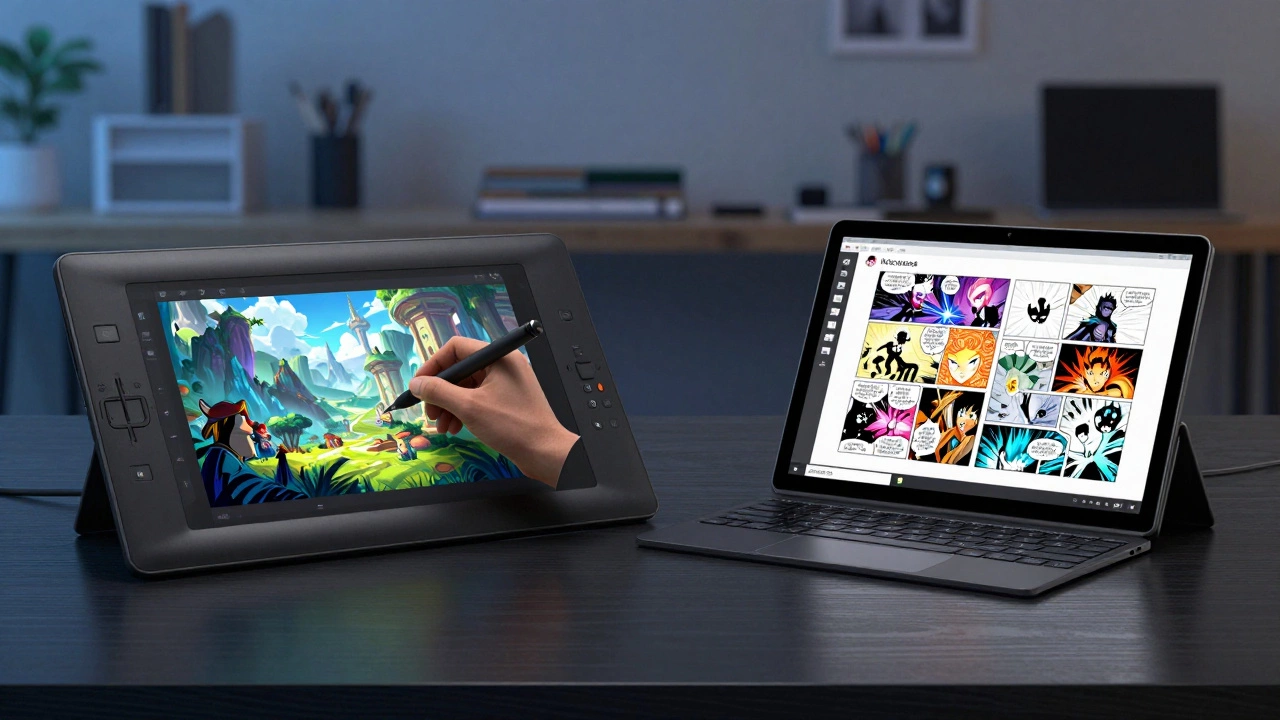
| Wacom Cintiq | Professional Studios | Industry standard pressure sensitivity, large size options | Expensive, requires a powerful PC/Mac connected |
| Huion / XP-Pen Tablets | Budget-Conscious Artists | Affordable, decent build quality, wide compatibility | Screen color accuracy may vary, smaller sizes common |
The iPad Pro is the dominant device for mobile digital artists remains the king for many casual and semi-pro creators. Why? Because it’s just an iPad. You use it for browsing, email, and Netflix, then flip it over to draw. The Apple Pencil offers near-zero latency, which means there’s no lag between your hand moving and the line appearing on screen. This responsiveness is crucial for building muscle memory.
However, if you need the power of desktop-class applications, a Microsoft Surface Pro is a versatile 2-in-1 laptop/tablet hybrid runs the full version of Photoshop and Clip Studio Paint. It bridges the gap between portability and raw processing power. For those who stay at a desk, Wacom Cintiq is a professional pen display series known for precision monitors are still the gold standard in studios. They offer larger screens and often better color calibration out of the box, though brands like Huion and XP-Pen have closed the quality gap significantly while keeping prices much lower.
The Software: Your Digital Palette
Having the hardware is only half the battle. You need software that translates your strokes into pixels. The market is split between subscription-based industry standards and one-time purchase favorites. Here is what most people are actually using.
Procreate is a popular raster graphics editor for iOS devices is arguably the most famous digital art app in the world right now. If you see someone sketching on an iPad in a coffee shop, they are likely using Procreate. It costs a one-time fee (around $13), has no subscription, and features an intuitive interface that gets out of your way. It supports layers, brushes, and even basic animation. For beginners and illustrators, it is the perfect starting point.
On the desktop side, Adobe Photoshop is the industry-standard raster graphics editor is still the heavyweight champion. It is used by almost every major studio for photo manipulation, compositing, and detailed painting. However, its monthly subscription model and complex interface can be intimidating for newcomers. Many professionals use it not just for painting, but for retouching and preparing files for print.
If you are into manga, comics, or anime-style art, Clip Studio Paint is specialized software for comic and manga creation is likely your best bet. It was built specifically for these mediums. It has incredible vector tools for clean lines, pre-made 3D models you can pose for perspective reference, and robust paneling tools for comic pages. Many artists find it more user-friendly than Photoshop for pure illustration.
For those who want professional features without the cost, Krita is a free and open-source painting program is a fantastic option. It is completely free, works on Windows, Mac, and Linux, and includes features like brush stabilizers and animation timelines. It proves you don’t need to spend money to make high-quality art.
Traditional vs. Digital: Why Switch?
You might wonder why so many traditional painters are switching to digital. Is it just hype? Not really. The biggest advantage is the "undo" button. In traditional media, a mistake can ruin hours of work. In digital, you can experiment freely. You can change colors instantly, move elements around without redrawing them, and scale your artwork up or down without losing quality (if you use vectors).
Digital art also eliminates the mess. No toxic fumes from solvents, no drying time, and no cluttered workspace. You can pack your entire studio into a backpack. Additionally, digital files are ready for the internet. Sharing your work on social media or selling prints online is seamless because your final product is already a file.
Essential Accessories Often Overlooked
While the tablet and software are the core, a few accessories can drastically improve your experience. First, consider a screen protector. Glass screens are slippery; adding a matte or paper-like texture gives your stylus grip, making it feel more like charcoal on paper. Second, invest in a good stand or tripod. Drawing with your arm crammed against your body causes fatigue and limits your range of motion. Elevating your device allows you to use your whole arm for broader strokes.
Finally, don’t forget about color calibration. If you plan to sell prints or work professionally, ensure your screen displays colors accurately. A cheap external calibrator can save you from embarrassment when your vibrant digital pink turns out muddy in real life.
Choosing the Right Path for You
So, what should you buy? If you are on a tight budget, start with a used Android tablet and Krita, or even just a mouse and free software like GIMP. If you can afford it, an iPad with Procreate is the most balanced entry point for learning. If you are aiming for a career in game design or publishing, you will eventually need a PC or Mac running Photoshop or Clip Studio Paint.
The tools matter, but they don’t define the artist. The best tool is the one you enjoy using enough to practice every day. Start simple, master the basics of light, shadow, and composition, and upgrade your gear as your skills grow.
Can I make digital art with just a mouse?
Yes, you can. While it lacks pressure sensitivity, using a mouse forces you to focus on composition and color theory rather than line quality. Many pixel artists and graphic designers use mice exclusively. However, for realistic painting or smooth line art, a stylus is highly recommended.
Is Procreate available on Android?
No, Procreate is exclusive to iOS (iPad and iPhone). Android users have excellent alternatives like Infinite Painter, HiPaint, or Krita, which offer similar functionality.
Do I need a powerful computer for digital art?
It depends on the software. Apps like Procreate run smoothly on mid-range iPads. Desktop software like Photoshop benefits from a strong CPU and plenty of RAM (16GB+), especially if you work with large canvases or many layers. However, free tools like Krita are quite lightweight and run well on older machines.
What is the difference between raster and vector art?
Raster art (used in Photoshop and Procreate) is made of pixels. If you zoom in too much, it becomes blocky. Vector art (used in Illustrator) is made of mathematical paths, so it can be scaled infinitely without losing quality. Most illustrators use raster, while logo designers use vector.
Is digital art considered "real" art?
Absolutely. Digital art requires the same foundational knowledge of anatomy, perspective, lighting, and color theory as traditional art. The medium is different, but the skill set is identical. Major museums and galleries increasingly feature digital works.