Digital Art Device Finder
Answer three quick questions to find the ideal device for your creative workflow.
You’ve got the vision. You’ve got the software. But staring at your mouse cursor trying to draw a smooth curve is enough to make you want to throw your computer out the window. The truth is, digital art isn’t just about talent; it’s about the tool in your hand. If you’re asking what device is best for digital art, the honest answer is: it depends entirely on how you work and where you work.
There is no single "king" of devices. An illustrator working on a commute needs something different than a concept artist rendering complex textures in a studio. To help you stop guessing and start creating, we need to break this down by workflow, budget, and physical comfort. Let’s look at the three main contenders: standalone tablets, pen displays, and pen tablets.
The Standalone Tablet: Freedom in Your Hands
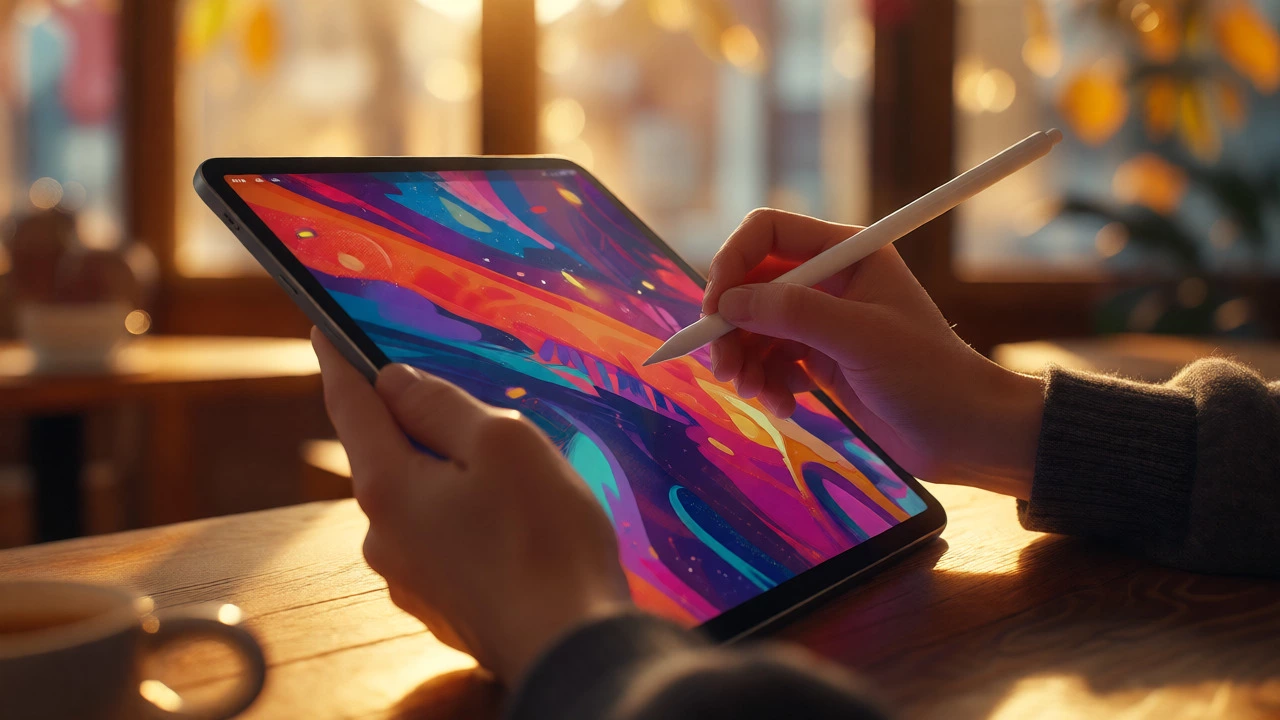
If you value mobility above all else, the iPad Pro with the Apple Pencil is currently the market leader. It’s not just a tablet; it’s a full creative suite that fits in your backpack. For years, artists were stuck using iPads for sketches only, but recent updates have changed the game. Apps like Procreate and Adobe Fresco are optimized specifically for touch interfaces, offering brush engines that rival desktop software.
The biggest advantage here is the lack of tethering. You can draw on the couch, in a café, or lying in bed. There’s no lag between your hand and the screen because the display is right under your pen tip. This direct manipulation reduces cognitive load-you see exactly what you draw, instantly. However, there are trade-offs. File management can be clunky compared to a desktop OS, and while M-series chips are powerful, they still struggle with massive multi-layered files compared to a dedicated workstation GPU.
Android users shouldn’t ignore the Samsung Galaxy Tab S9 Ultra. With its massive 14.6-inch AMOLED display, it offers more canvas space than most small monitors. Samsung’s partnership with Clip Studio Paint and their own S Pen technology, which requires no charging, makes it a strong contender for comic artists who need large canvases without lugging around a laptop.
The Pen Display: The Studio Standard
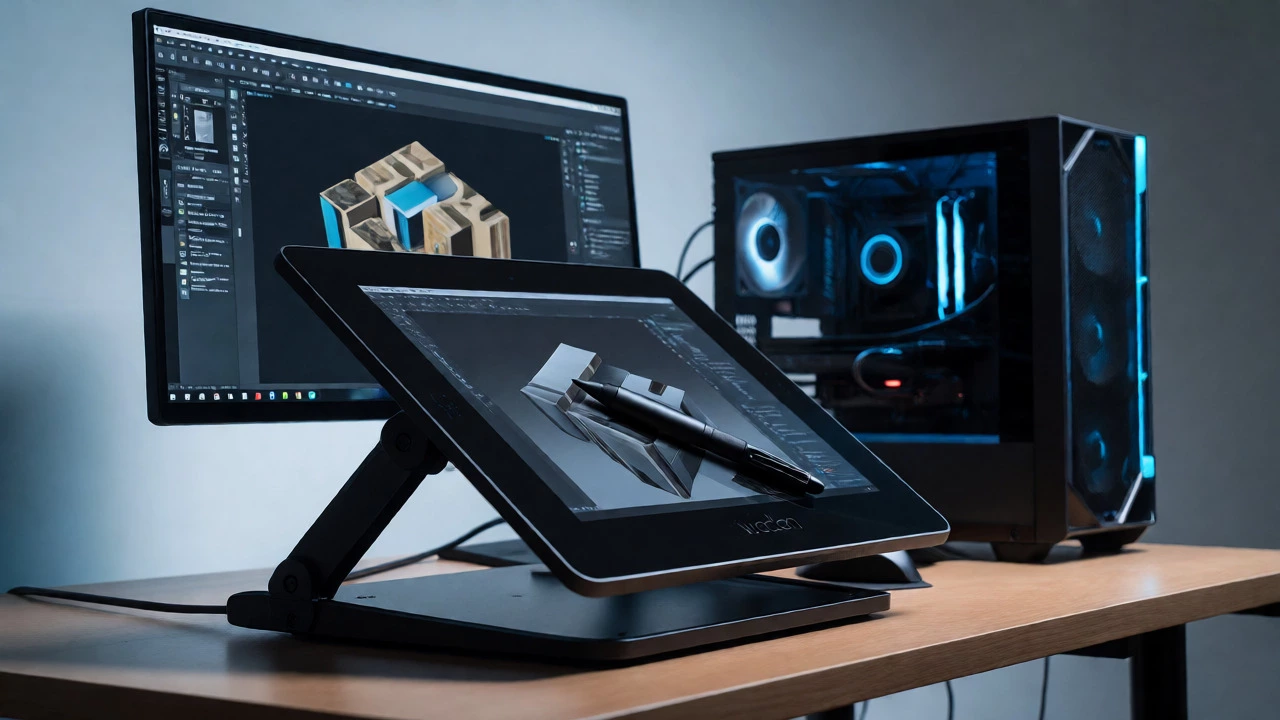
If you’re working from a desk and need professional-grade color accuracy and processing power, a pen display is the industry standard. Think of these as external monitors you can draw on directly. The Wacom Cintiq Pro series has long been the benchmark here. Why? Because Wacom’s EMR (Electro-Magnetic Resonance) technology provides a natural, paper-like feel that many traditional painters prefer over capacitive screens.
The key benefit of a pen display is that it offloads the heavy lifting to your computer. You get access to full versions of Photoshop, Blender, or ZBrush without compromise. You also get better ergonomics. Most high-end models come with adjustable stands, allowing you to tilt the screen to match your posture. This is crucial if you spend six hours a day drawing; hunching over a flat tablet leads to neck strain fast.
However, don’t ignore the competition. Huion and XP-Pen have disrupted this market significantly. A 16-inch Huion Kamvas Pro 16 costs a fraction of a comparable Wacom model. While Wacom still holds the crown for driver stability and build quality, the gap has narrowed. For freelancers starting out, spending $300 on a Huion instead of $1,500 on a Wacom leaves plenty of cash for brushes and courses.
The Pen Tablet: Old School Reliability
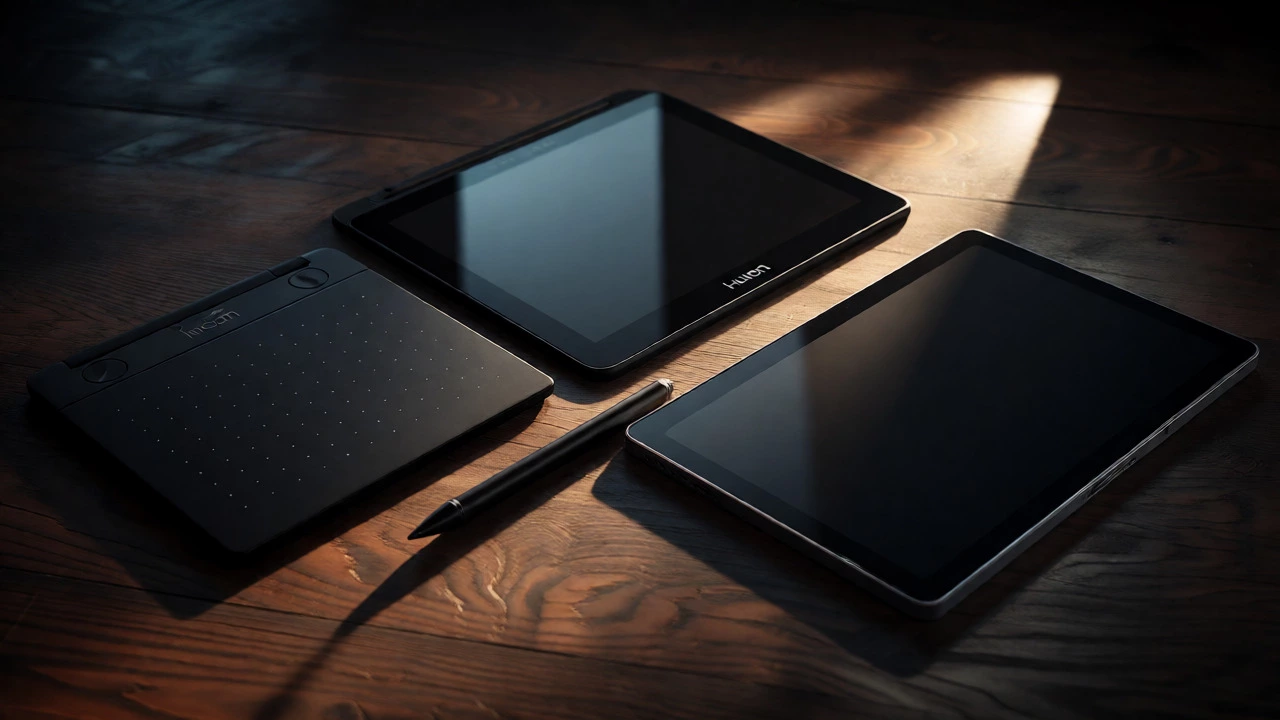
Believe it or not, many professional illustrators still use non-screen pen tablets, also known as graphics tablets. These are the matte black pads you connect to your PC via USB. You draw on the pad while looking at your monitor. It sounds awkward initially-there’s a disconnect between your hand and your eyes-but it solves two major problems: cost and durability.
A basic Wacom Intuos starts around $80. It will last for decades. There’s no glass to crack, no battery to degrade, and no screen to calibrate. For line art, storyboarding, and photo retouching, these are incredibly efficient once you learn the muscle memory. Artists who do a lot of vector work often prefer them because they don’t need to worry about parallax error (the slight offset between pen tip and cursor) that plagues cheaper screen tablets.
Key Features That Actually Matter
When shopping, you’ll see specs thrown around like confetti. Ignore the marketing fluff and focus on these four metrics:
- Pressure Levels: Look for at least 8,192 levels. Anything less feels choppy. You want the transition from a light hairline to a thick stroke to feel seamless.
- Tilt Support: Essential for shading. If you want to mimic charcoal or pencil shading, your device must recognize when you tilt the pen.
- Parallax: On screen tablets, check reviews for parallax. Good devices use laminated displays to keep the cursor glued to the pen tip. Cheap ones have a visible air gap that ruins precision.
- Color Gamut: If you sell prints, aim for 99% sRGB coverage. If you do HDR video or high-end print, look for DCI-P3 support. A dull screen lies to you about colors, leading to muddy final outputs.
Comparison: Choosing Your Weapon
| Device Type | Best For | Portability | Power | Price Range (AUD) |
|---|---|---|---|---|
| iPad Pro + Apple Pencil | Illustration, Sketching, On-the-go work | High | Medium-High | $1,000 - $2,000 |
| Wacom Cintiq / Huion Kamvas | Detailed Painting, Concept Art, Photo Editing | Low | Very High (PC dependent) | $400 - $2,500+ |
| Wacom Intuos (Pen Tablet) | Line Art, Retouching, Budget Beginners | Medium | Depends on PC | $80 - $300 |
Don’t Forget the Software Ecosystem
Your hardware choice dictates your software options. If you buy an iPad, you’re locked into iOS apps. Procreate is fantastic, but it doesn’t have the layer blending modes or filter library of Photoshop. If you buy a Wacom Cintiq, you can run anything. This flexibility matters if you plan to dabble in 3D sculpting with ZBrush or animation in After Effects later down the line.
Also, consider file compatibility. Sending PSDs from an iPad to a client’s desktop team can sometimes cause formatting issues. If you’re working in a collaborative studio environment, sticking to Windows/macOS based pen displays ensures everyone opens the same file without surprises.
Final Verdict: Which One Should You Buy?
If you are a student or hobbyist on a tight budget, grab a Wacom Intuos or a Huion Inspiroy. Learn the fundamentals of pressure sensitivity and shortcuts. You don’t need a screen to learn how to draw digitally.
If you are a freelancer who works in coffee shops or travels, the iPad Pro is unmatched. The convenience outweighs the software limitations for 80% of illustration tasks.
If you are a professional aiming for a career in concept art, game assets, or high-end advertising, invest in a pen display connected to a powerful PC. The ability to use full-suite Adobe Creative Cloud tools, manage massive files, and ensure color accuracy for print is worth every dollar.
Do I need a computer if I buy a drawing tablet?
It depends on the type. Standalone tablets like the iPad Pro or Microsoft Surface do not require a separate computer. However, pen tablets (like the Wacom Intuos) and pen displays (like the Cintiq) act as peripherals and must be connected to a Windows or Mac computer to function.
Is an iPad good enough for professional digital art?
Yes, for many professionals. Apps like Procreate and Affinity Designer have reached parity with desktop software for illustration and graphic design. However, for complex 3D integration, heavy photo compositing, or specific industry-standard pipelines requiring .PSD files with smart objects, a desktop setup may still be preferable.
What is the difference between a pen tablet and a pen display?
A pen tablet has no screen; you draw on the pad while looking at your computer monitor. A pen display is a monitor you can draw on directly. Pen displays offer more intuitive hand-eye coordination but are generally more expensive and require a computer connection.
How much should I spend on a digital art device?
For beginners, $100-$300 AUD gets you a reliable entry-level pen tablet. Mid-range pen displays or capable Android tablets range from $500-$1,000 AUD. Professional setups with high-end iPad Pros or large Wacom Cintiqs typically exceed $1,500 AUD. Start low and upgrade as your skills demand better hardware.
Are cheap Chinese drawing brands like Huion and XP-Pen reliable?
In recent years, yes. Brands like Huion and XP-Pen have dramatically improved build quality and driver stability. They offer similar specifications to Wacom at half the price. While Wacom still leads in long-term driver support and resale value, Huion and XP-Pen are excellent choices for students and independent artists.